If you were failed to get the Guest Additions installed and run on OpenSUSE 12.2, this post will try to help you to fix it. Previously, I got the following error when I tried to install Guest Additions on OpenSUSE 12.2. I am using Virtualbox 4.2.2 on a Windows 7 computer. I got the following error:
Thursday, September 26, 2013
Wednesday, September 25, 2013
OpenSUSE 13.1 Beta 1 is available for testing
Its been a long time since I wrote the last post on this blog because I am bit busy with something else. I just read the news on Distrowatch about the upcoming OpenSUSE 13.1 development. At this point, OpenSUSE reach version 13.1 Beta 1 which can be downloaded for testing. OpenSUSE 13.1 comes with many updated packages such as Linux kernel 3.11.1, LLVM/Clang 3.3, Mesa 9.2.0, systemd 207, PHP 5.4.19, Tcl 8.6, Bluez 5, WINE 1.7, Samba 4.1, KDE SC 4.11.1 and GNOME 3.3.91, Apache 2.4.6, TeX Live 2013, Vim 7.4, Amarok 2.8.
Saturday, November 10, 2012
OpenSUSE 12.3 Milestone 1 is now available for testing
The new development version of OpenSUSE 12.3 is now reached Milestone 1. Many new updates and some new features are included on this OpenSUSE 12.3 Milestone 1. News fresh from the Factory - the openSUSE release team has made the openSUSE 12.3 Milestone 1 available for testing and feedback.
Readmore..
Tuesday, October 16, 2012
Download Virtualbox 4.2 rpm for OpenSUSE 12
The latest version of Virtualbox 4.2 is now available for download. Here we provide the download link for the latest Virtualbox 4.2 rpm for OpenSUSE 12. Virtualbox is a free virtualization program which lets us to install and run multiple operating systems on a single hosts. Opensuse 12 is a good OS that can be used to handle many virtual machines depends on your hardware. To Download Virtualbox 4.2 rpm for OpenSUSE 12, please use the following link.
Download Virtualbox 4.2 rpm for OpenSUSE 12
- http://download.virtualbox.org/virtualbox/4.2.0/VirtualBox-4.2-4.2.0_80737_openSUSE114-1.i586.rpm (32bit)
- http://download.virtualbox.org/virtualbox/4.2.0/VirtualBox-4.2-4.2.0_80737_openSUSE114-1.x86_64.rpm (64 bit)
How to install Cinnamon on OpenSUSE 12.3
This OpenSUSE tutorial will show you How to install Cinnamon on OpenSUSE 12.3. Cinnamon is currently my favorite desktop and now I want to install Cinnamon 1.6.1 on my OpenSUSE 12.3. Even its still in development version (Milestone 0), this OpenSUSE 12.3 is quite usable.
Steps to install Cinnamon on OpenSUSE 12.3
In this tutorial, I install Cinnamon using 1 click install. Which means, no command typing required. Cinnamon 1.6.1 already available in OpenSUSE repository.
Cinnamon 1 Click Install OpenSUSE 12.3
Monday, October 15, 2012
How to install Virtualbox on OpenSUSE 12.2
This tutorial is going to show you how to install Virtualbox on OpenSUSE 12.2. Installing Virtualbox on OpenSUSE is quite straight forward. Oracle developer already provided the binary installation file of Virtualbox for OpenSUSE.
Steps to install Virtualbox on OpenSUSE 12.2
Step 1.Download and add Virtualbox repository to OpenSUSE 12.2
cd /etc/zypp/repos.dwget http://download.virtualbox.org/virtualbox/rpm/opensuse/11.4/virtualbox.repo
Saturday, October 6, 2012
Create OpenSUSE Live USB from Windows
This tutorial will show you how to create OpenSUSE Live USB from a Windows machine. On this tutorial, I am trying to create OpenSUSE 12.3 Milestone 0 Live USB. You can grab this development version of OpenSUSE 12.3 ISO for testing.
To create OpenSUSE Live USB from Windows machine, we need the following items:
Steps to create OpenSUSE Live USB from Windows
A. Run ImageWriter.exe
OpenSUSE 12.3 is now available for download
The new development release of OpenSUSE 12.3 Milestone 0 is now available for download. There are many updates have been made to this new OpenSUSE 12.3. There is no such exact information about when the final release of OpenSUSE 12.3 will be available. The following items have been included on this OpenSUSE 12.3 Milestone 0:
KDE is updated to 4.9.1 release; glibc is updated to 2.16 release; Linux kernel is updated to 3.6.0-rc7; X.Org updated to 1.13 release and all X.Org video drivers are updated to latest stable release; Mesa updated to upcoming v9 snapshot; DRM libraries updated to 2.4.33 release; Qt updated to 4.8.2 release; Emacs updated to 24.2 release; OpenJDK updated to 1.7.0.6 release; Banshee media player is updated to 2.5.1 release.
Wednesday, October 3, 2012
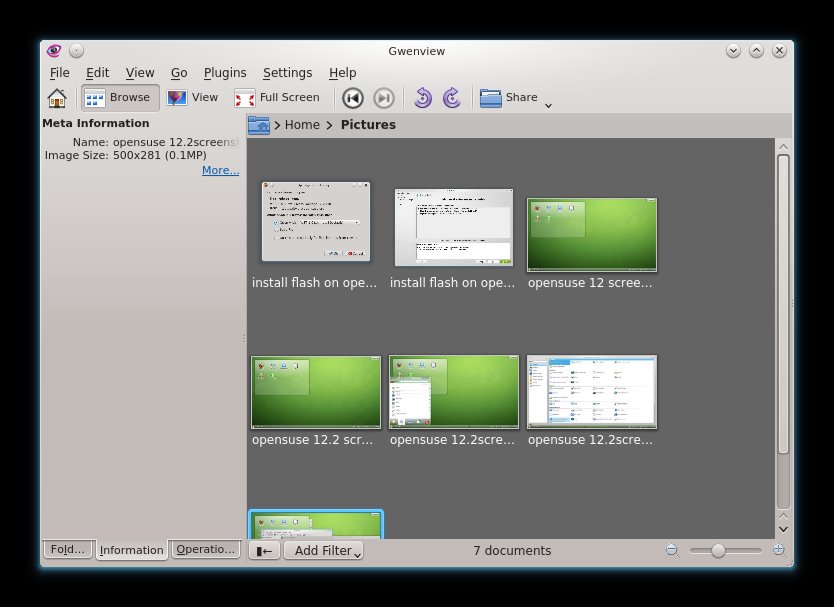
Resize images on OpenSUSE 12.2 using GwenView
This tutorial will show you how to Resize images on OpenSUSE 12.2 using GwenView. For a Blogger like me, resizing images is a common task that should be done quickly and in professional way. There are many image editor or other graphic applications for Linux that provide image resizing feature. But, for me, GwenView is a better one. It automatically installed by default on OpenSUSE 12.2.
How to Resize images on OpenSUSE 12.2 using GwenView
To resize and image, open GwenView and browse to your images.
OpenSUSE 12.2 Screenshots
Here I want to share my OpenSUSE 12.2 Screenshots collection. I am currently running OpenSUSE 12.2 KDE Live USB. It works pretty nice on my ThinkPad Edge E125 notebook. OpenSUSE 12.2 is a promising Linux Distribution that is easy to use and powerful.
Check some OpenSUSE 12.2 Screenshots below.
OpenSUSE 12.2 desktop
Install Adobe Flash Player on OpenSUSE 12.2
This OpenSUSE tutorial will show you how to Install Adobe Flash Player on OpenSUSE 12.2 using one click install. You don't have to type any command to install this Flash Player on OpenSUSE 12.2 since it already available on OpenSUSE repository.
Step to Install Adobe Flash Player on OpenSUSE 12.2
Adobe Flash Player One Click Install OpenSUSE 12.2
Click the link above and it will download flash-player.ymp. Select open with YaST 1-Click Install (default) on the confirmation window.
Saturday, September 29, 2012
Configure DHCP Server on OpenSUSE 12.2
Configure DHCP Server on OpenSUSE 12.2 is pretty easy. With a few simple steps, we can turn an OpenSUSE 12.2 into a powerful DHCP server. DHCP server is a server that responsible to lease IP addresses to the clients on a network.
Steps to Install DHCP Server on OpenSUSE 12.2
1. Open YaST2 and go to Software > Software Management
2. On the Software Management window, change the Filter option into Patterns.
3. Check the DHCP Server and DNS server
4. Click Accept and wait until the installation is finished.
Readmore..
How to install RPM file on OpenSUSE 12.2
This is the common question for a new OpenSUSE users, how can we install RPM on OpenSUSE? There are several ways to install software on OpenSUSE 12.2. We can easily install applications using RPM binary. This tutorial will show you How to install RPM file on OpenSUSE 12.2.
To install RPM file on OpenSUSE, you can do the following command as root
rpm -ivh filename.rpm
or
yast2 -i filename.rpm
Those command above will attempt to install the rpm file into the system. We can also use the OpenSUSE software center or package installer to handle the installation of the RPM file. Simply double click the rpm file and select Install.
Readmore..
5 Reason Why I choose OpenSUSE
I am a Linux fans and I have been testing many kind of Linux Desktop ranging from Ubuntu, Debian, OpenSUSE, Fedora, Pure OS, Pear Linux, and some others. But personally, I prefer OpenSUSE as my favorite Linux desktop for my daily usage. Here I have 5 Reason Why I choose OpenSUSE as my Linux desktop
1. OpenSUSE is Stable and Powerful
I think no one argue that OpenSUSE is one of the most stable Linux distribution out there. OpenSUSE that is developed based on the Enterprise version of SUSE Linux (SLES) that has been used by thousands companies and enterprises.
2. OpenSUSE is easy to use
It is useless if a Linux distribution is powerful but hard to be used. OpenSUSE has both features, powerful and easy to use. So what else I am looking for?
3. Better hardware supports
Not like many other Linux distributions, OpenSUSE has a huge hardware database to ensure it will detects and automatically enable your hardware including VGA card, Sound Card, processor, motherboard and many others. It also supports various brands i.e: ASUS, Gigabyte, HP, Canon and many more.
4. OpenSUSE is Beautiful
OpenSUSE comes with the latest desktop manager which includes most recent graphical interface. It promises better user experiences with several desktop effects included. So, OpenSUSE is a powerful yet beautiful Linux.
Readmore..
Subscribe to:
Posts (Atom)